Why Learn Linux for Cloud & DevOps?
Start with the apps you use every day, understand the operating system beneath them, and learn Linux through questions, experiments, and evidence.
You open a browser, play some music, and start writing a document. On your phone, you watch a video or scroll through a feed. We use these applications so often that we rarely stop to ask: what makes them run?
Why can several applications share one computer? Where does an unsaved document live? What happens between tapping an app and seeing something from a company’s servers?
These are the questions I want to begin with at GurujiX. Before collecting Linux commands, I want us to build a picture of the system those commands help us understand.
What is an operating system?
An operating system, or OS, is system software that manages a computer’s resources and provides services that programs use to run.
Think of a shared workshop. People need workbenches, tools, storage, and rules about what they can use. Without coordination, one job could take over the space or damage another person’s work. The OS provides that coordination for programs.
The computer’s main resources include:
- CPU: executes instructions, doing the actual computational work.
- Memory, or RAM: holds information programs are actively working with.
- Storage: keeps saved files and other persistent data.
- Devices: connect the computer to things such as a keyboard, display, speakers, and network.
The OS shares CPU time, manages memory, provides file and device interfaces, and applies access rules. The CPU still executes application instructions; the OS does not personally perform every calculation.
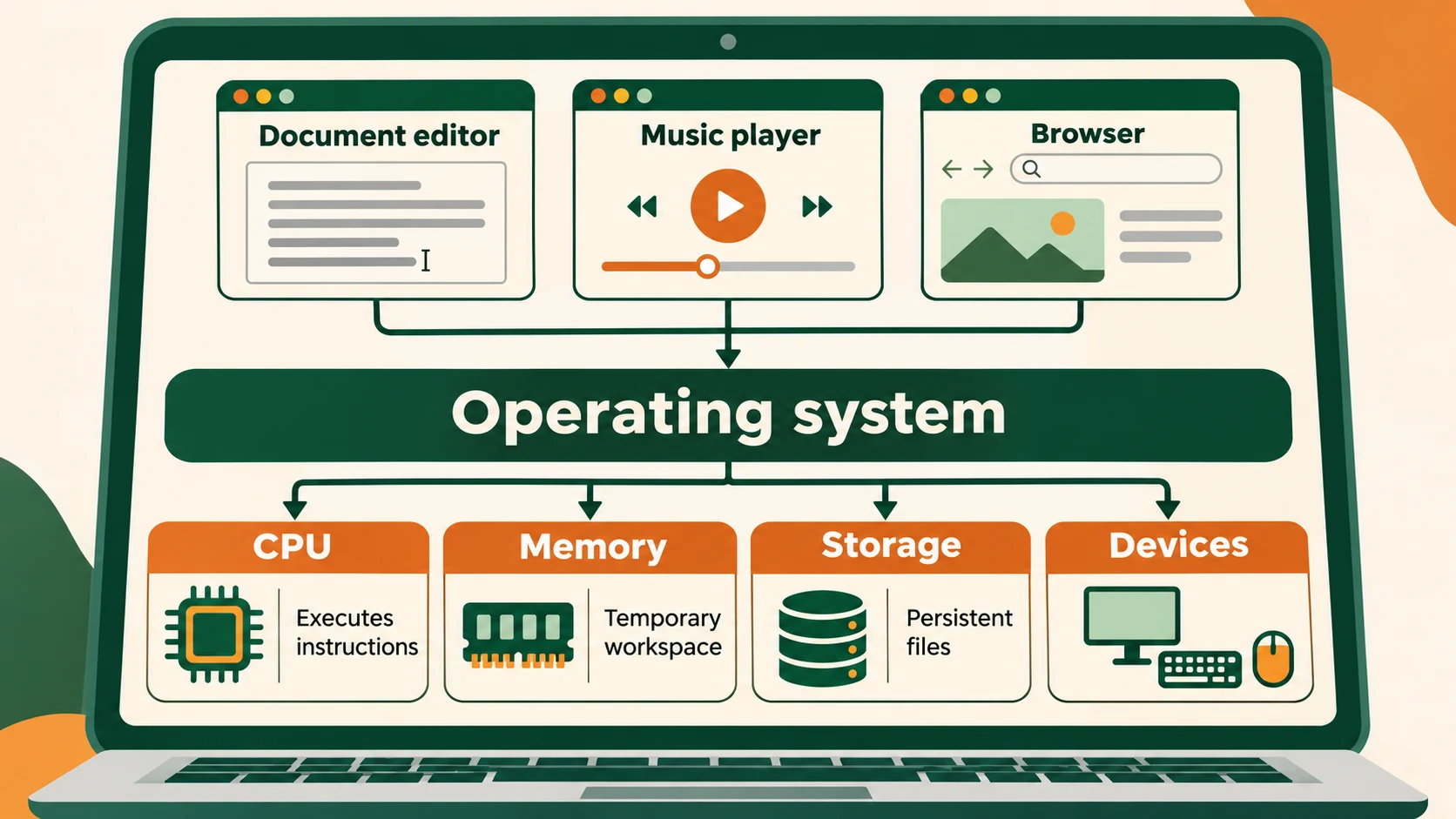
You do not need a terminal open to use an operating system. It is involved when you use ordinary apps, and it supports background programs when nobody is looking at the screen.
How does it help with an everyday task?
Imagine opening a saved document, editing it, and saving your changes.
The editor starts as a process: a running instance of a program. It requests access to the file. The OS handles relevant permissions and file operations, while the CPU executes the editor’s instructions and memory holds its working information.
Saving asks the system to write the updated information through its file and storage mechanisms. RAM is the working space; storage is where saved information persists. They serve different purposes.
This is a simplified picture. Systems use caches and buffering, so reading a file does not necessarily mean physically reading the disk each time. We will investigate those details later. For now, one familiar action has connected processes, CPU time, memory, files, and permissions.
Where do operating systems fit in the apps we use?
When you use a service such as Netflix, Facebook, or Instagram, the app on your phone or the browser on your laptop does some work locally. It also communicates over a network with remote services.
Your device acts as a client when it asks for something. A server is a computer or program providing a service to another computer or program. A streaming service, for example, involves much more than one machine: application services, storage, and delivery infrastructure work together.
Companies use operating systems on the machines running those services. Your device has its own OS too. Both ends need resources, and both can encounter problems involving memory, storage, access, or communication.
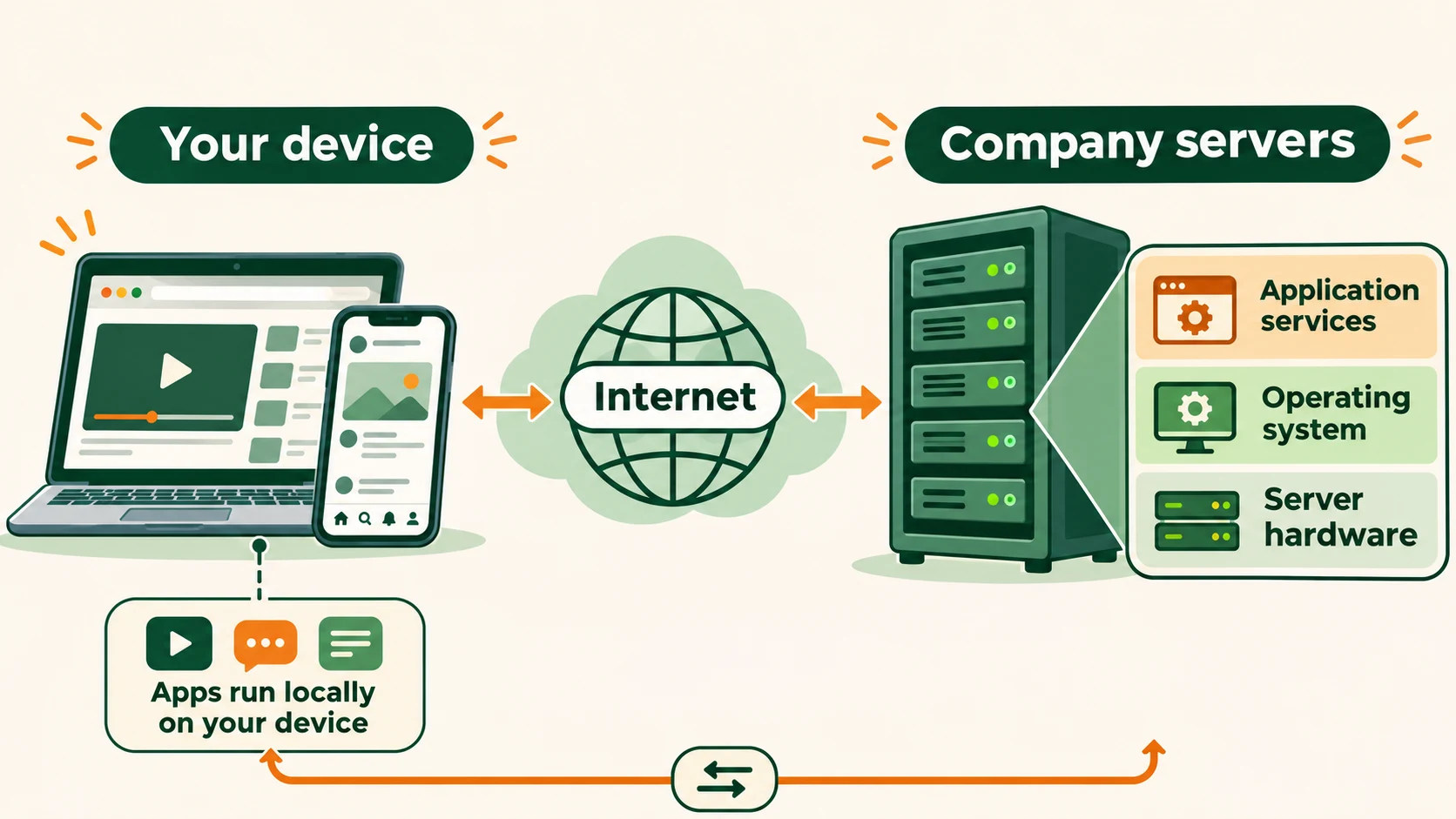
This is why operating-system knowledge matters beyond your personal laptop. A cloud console can help you create a machine; understanding its OS helps you reason about what happens inside it.
Windows, macOS, Linux: which one should we learn?
We describe operating systems by their families and by their uses. Desktop, server, mobile, and embedded are useful categories, but they overlap.
Windows is used for personal computing, business applications, and server workloads. macOS supports everyday and professional work on Macs, including development workflows using Apple’s tools. Linux-based systems run on laptops, servers, and many other devices.
None of these systems belongs to only one job. The right choice depends on the application, required tools, hardware, and operational needs. If your environment uses Windows or macOS, learning its details matters too.
Precisely, Linux is a kernel: the core component responsible for mechanisms such as scheduling, memory management, and device access. A distribution, such as Ubuntu, combines it with libraries, utilities, services, and software-management tools to make a usable system. The Linux Kernel Organization explains this distinction.
A terminal is an interface for text-based programs. A shell, such as Bash, interprets commands. Neither is the whole operating system.
Why focus on Linux for cloud and DevOps?
My reason is practical relevance and the opportunity to investigate how systems behave.
AWS provides Amazon Linux for cloud workloads. Linux is also central to many server and container environments. Understanding processes, permissions, resource limits, and services helps connect the infrastructure we configure to the applications running on it.
Linux also gives us an accessible learning environment. We can inspect the system, read documentation and source code, automate tasks, and repeat experiments in a separate lab. You can begin while using a Mac or Windows computer; you do not need to replace your everyday OS.
Many distributions are available without an OS licence fee. That does not make running infrastructure free: compute, storage, support, maintenance, and engineering effort still have costs.
The value is larger than learning one command set. Understanding why a process cannot write a file, or why a machine is struggling, gives you questions you can carry into other environments—even when the tools differ.
Our approach: understand, experiment, investigate
We will learn commands, but each command should help answer a question.
Suppose a practice application cannot save a file. Restarting it immediately might hide useful evidence. Instead, we can ask: is storage full? Does the process have permission? What do its logs say?
Our loop will be:
- Ask: describe the behavior we want to understand.
- Explain and predict: build a simple model and say what we expect.
- Experiment: change one thing in an isolated lab.
- Observe: collect output, measurements, or logs.
- Explain again: compare the result with our prediction and verify any fix.
For example, we might predict that a process using more memory will change the lab’s memory measurements. We can test that carefully, compare before and after, and investigate what the numbers mean.
That is how I want us to build troubleshooting confidence: by explaining evidence and checking our reasoning. Experiments that deliberately break things belong in disposable labs, with a recovery path.
What we will learn first
Our operating-systems and Linux stage will cover six connected areas:
- Running programs: shells, system calls, processes, scheduling, and threads.
- Resources: CPU, memory, files, storage, and limits.
- Access and lifecycle: users, permissions, startup, packages, and services.
- Communication and isolation: host networking and the Linux mechanisms behind containers.
- Investigation: logs, measurements, tracing, and performance troubleshooting.
- Repeatable operations: automation, backups, restoration, and recovery.
I will use Operating Systems: Three Easy Pieces as a reading foundation, alongside Linux documentation and our own experiments. Its core themes—virtualization, concurrency, and persistence—will help connect individual lessons.
We will deepen the topics as we go. The first goal is a useful mental model, supported by things we can observe and explain.
Start with the apps already open on your computer. What does the application do, what does the CPU do, and what does the operating system manage? That is where our Linux journey begins.